POWER PLATFORM · INDEPENDENT PORTFOLIO
AI Document Validation & Workflow Automation
A tested example of reading documents, checking business rules and routing exceptions with Power Automate and AI.
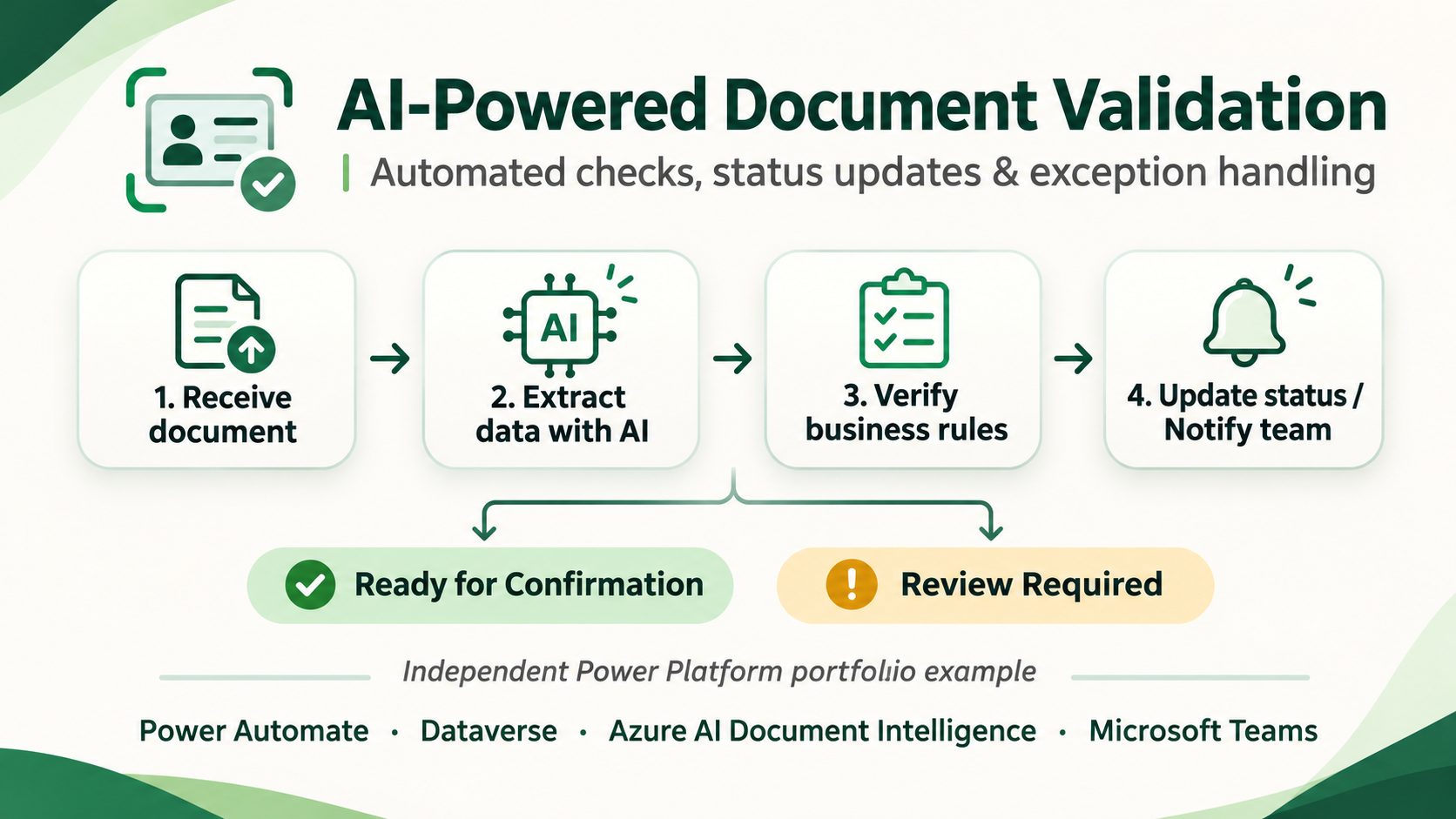
This independent car rental workflow retrieves a driver’s licence file and linked customer record from Dataverse, extracts information with Azure AI Document Intelligence, and validates the results against business rules.
How the workflow works
01 · Retrieve: Read the rental request, customer record and licence document stored in Dataverse.
02 · Extract: Use Azure AI Document Intelligence to obtain structured licence data and confidence scores.
03 · Validate: Compare extracted customer details, licence expiry and age-based eligibility requirements.
04 · Respond: Update the rental record or notify the team when manual review is required.
Four tested scenarios
Successful validation
When the extracted data passes the configured checks, the rental is updated to Ready for Confirmation. This does not represent final approval.
Low AI confidence
Insufficient extraction confidence triggers an exception path and a Teams notification for review.
Customer data mismatch
When extracted information does not match the customer record, the workflow stops automatic confirmation and notifies the team.
Expired driver’s licence
The workflow updates the record and notifies the operations team and customer when the licence is not valid through the rental return date.
See the Result in the Business App
Example: an expired licence. The automation checks whether the licence remains valid through the reserved return date. An invalid document leads to an updated rental record and follow-up notifications instead of automatic confirmation.
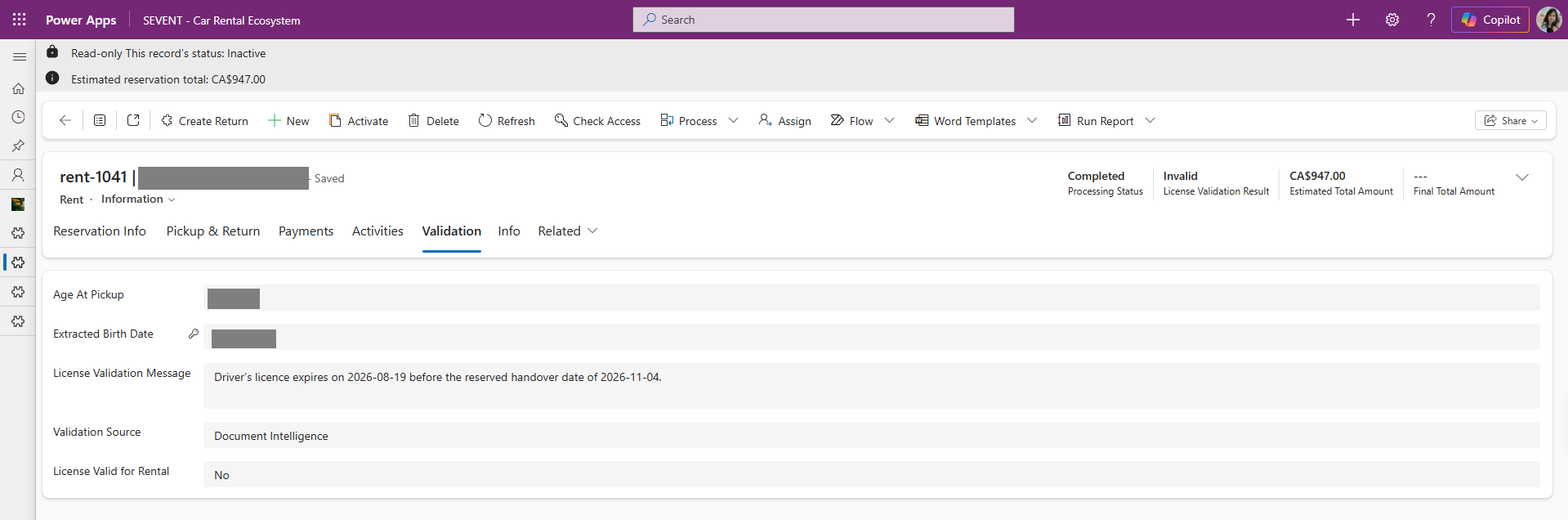
Important distinction: Processing Status: Completed means the validation workflow finished its processing. Licence Validation Result: Invalid means the driver’s licence did not pass the business rule. These statuses are not contradictory.
The full successful and exception scenarios are documented above. Screens showing notifications and the complete Power Automate implementation can be added later as optional technical evidence.
Behind the Scenes — How Power Automate Handles the Request
For technical visitors, here is the actual architecture behind the business results. The workflow uses Dataverse, Azure AI Document Intelligence and Microsoft Teams. The steps below describe the implemented example; they are not a public live connection.
A Dataverse Rent event starts the cloud flow. It retrieves the linked Contact record and downloads the driver’s licence file through a TRY scope. Download failures follow a configured CATCH path.
Azure AI Document Intelligence extracts licence data and confidence values. Low confidence routes the request for review instead of treating the document as verified.
The flow compares licence information to the customer record, checks licence validity against the return date and evaluates driver age. A valid result updates the Rent record to Ready for Confirmation — not final approval.
Exception paths update status fields and send Teams or email notifications as applicable. A successfully completed processing run can still return an Invalid document result.
Technical screenshots: original screenshots of the Power Automate run are available for review and will be added here as selected images after final redaction and upload. The overview diagram above remains the primary visual explanation.
Technology & implementation notes
Power Automate · Microsoft Dataverse · Azure AI Document Intelligence · Microsoft Teams
TRY/CATCH scopes and run-after settings support exception handling. Four test scenarios were demonstrated; this is not an identity verification product or a production client deployment.
Actual Power Automate execution screenshots can be added after sensitive identifiers and connections are hidden.
Could something similar help your business?
Every implementation needs its own requirements, software access, security, licensing and testing. Start with one clearly defined task.